
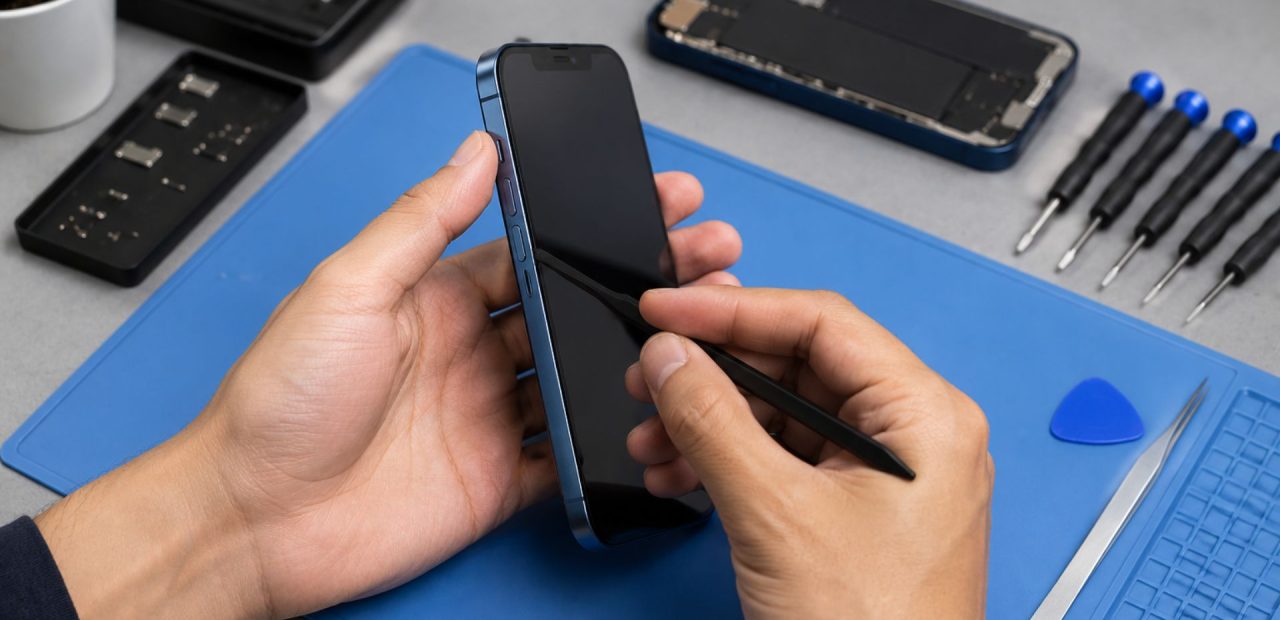
Is your iPhone volume button stuck, difficult to press, or not responding at all? Before you assume it needs repair, there are a few safe troubleshooting steps you can try at home.
Start With the Basics: Remove the Case and Check for Debris
Sometimes, the problem is caused by something simple. Start by removing your phone case. A case that does not fit properly can press against the volume buttons or prevent them from moving freely.
Next, inspect the area around the buttons for dust or debris. Turn off your iPhone, then gently wipe around the buttons with a clean, soft, lint-free cloth. Avoid inserting sharp objects into the gap around the button or letting moisture enter any opening, as this could cause further damage.
Once the area is clean, test the volume buttons again.
Check Whether the Problem Is With the Button or the Settings
If the volume button clicks normally but the sound does not change as expected, the issue may be related to your settings rather than the physical button.
Try these steps:
- Open Control Center and adjust the volume slider on the screen.
- Go to Settings > Sounds & Haptics to review your ringer and alert settings.
- Check whether Silent mode is turned on using the Ring/Silent switch or Action button, depending on your iPhone model.
- Review your Focus settings if calls, alerts, or notifications seem quieter than expected.
If the on-screen volume slider works but the physical volume buttons do not respond, the button may need professional attention.
Update Your iPhone Software
In some cases, a software issue can affect how your iPhone responds. To check for an available update, go to Settings > General > Software Update and install the latest version of iOS if one is available.
It is also a good idea to back up your iPhone regularly, especially before performing updates or more advanced troubleshooting.
If your volume button remains stuck or does not respond after an update, it may be a hardware problem rather than a software issue.
Use AssistiveTouch as a Temporary Workaround
While you are arranging a repair, you can use AssistiveTouch to adjust your volume without relying on the physical buttons.
To turn it on, go to:
Settings > Accessibility > Touch > AssistiveTouch
Once enabled, an on-screen button will appear. You can use the AssistiveTouch menu to control the volume and access other common functions.
AssistiveTouch can help you continue using your phone, but it does not repair a stuck or damaged volume button.
Signs Your iPhone Volume Button May Need Repair
A stuck volume button may require professional repair if it:
- Stays pressed down or feels jammed
- Does not click or respond after the case is removed
- Stops working after a drop or impact
- Changes the volume repeatedly without being pressed
- Continues to malfunction after basic cleaning and software checks
Avoid pressing or forcing a jammed button repeatedly. Doing so could make the problem worse.
Get Help With a Stuck iPhone Volume Button in Fort Worth
If your iPhone volume button is still stuck or unresponsive, Fort Worth iPhone Repairs can help. The team provides iPhone side button repairs using high-quality parts and offers straightforward service for a wide range of iPhone models.
Walk-ins are welcome, and no appointment is needed. For repair availability and timing for your specific iPhone model, call (817) 999-3802 or visit the shop at 3461 Blue Bonnet Circle, Fort Worth, TX 76109.
Conclusion
A stuck iPhone volume button can be frustrating, but the first steps are often simple. Removing the case, carefully cleaning around the button, checking your settings, updating iOS, and using AssistiveTouch may help you manage the issue.
When the button remains stuck, does not respond, or appears physically damaged, professional repair is the safer next step. Visit Fort Worth iPhone Repairs or call (817) 999-3802 for help with your iPhone volume button.