
You’re streaming your favorite music, watching a video on YouTube, or trying to catch every word on a phone call – and then it starts: the annoying crackling sound coming from your iPhone speaker. It’s distracting, frustrating, and honestly a little alarming.
The good news? This is a common issue with a range of possible fixes, and many of them you can try right now.
Common Causes of iPhone Speaker Crackling
Before you troubleshoot, it helps to understand what’s actually going wrong. There are a few typical culprits behind a speaker crackling sound on an iPhone.
Moisture damage is another cause to consider. If your iPhone has been exposed to water, rain, or even steam, moisture inside the speaker can lead to a crackly, distorted sound. This is different from the typical pop or buzz you might hear from a software issue.
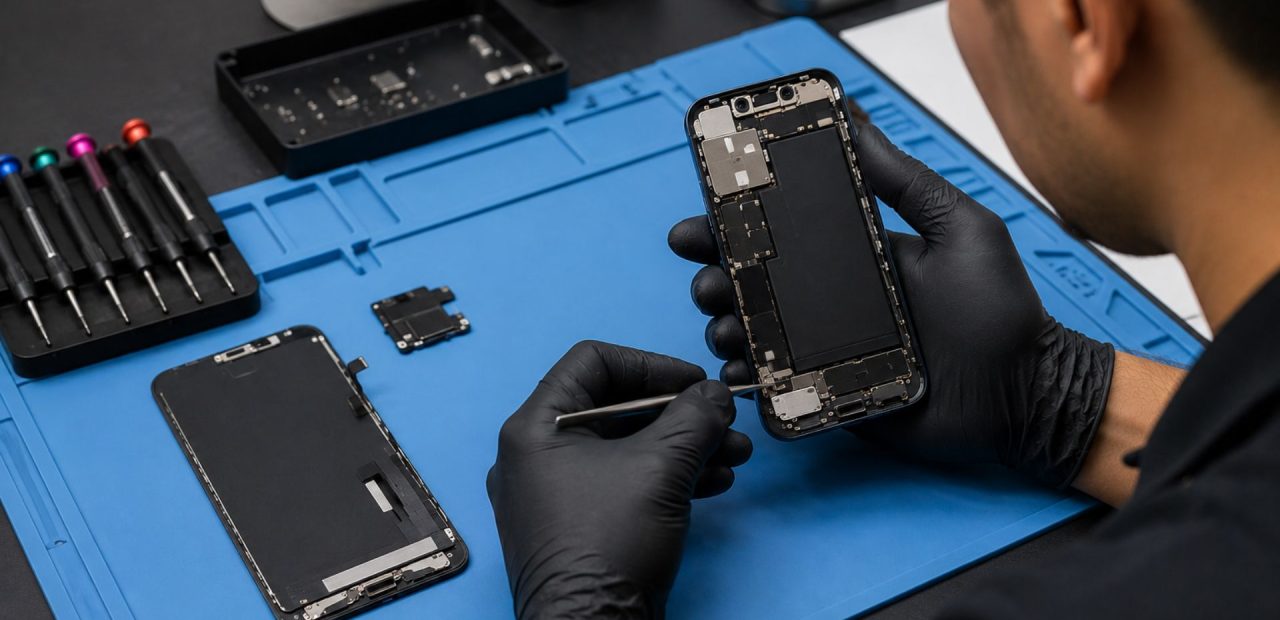
Physical hardware damage is the more serious possibility. A faulty or physically damaged speaker component – especially on models like the iPhone 13, iPhone 13 Pro, or iPhone 13 Pro Max – may need professional repair to fully resolve.
Troubleshooting Tips You Can Try at Home
Here are practical steps to help fix the issue before calling in reinforcements.
Check Your Volume Level and Settings
Start simple. Lower the volume using the slider in Settings or the side buttons. Sometimes playing audio at high volume causes distortion, especially if the speaker is already under pressure from debris or age. Also, check your ringer and haptics settings to make sure nothing unusual is affecting audio output.
Disable Bluetooth temporarily. Sometimes your iPhone routes audio to a connected device like headphones or an in‑ear monitor without you realizing it, which can cause interference and affect speaker output.
Also worth checking: toggle Wi-Fi off and back on, and make sure your iPhone is running the latest iOS. A pending software update might be the simplest fix to improve sound quality.
Clean the Speaker Gently
Grab a soft brush – ideally a soft-bristled brush – and gently clean around the speaker grille. You can also use compressed air in short bursts to clear out debris. Do not use water, and never attempt to open the phone yourself to clean internal components.
If your iPhone crackling issue is tied to a blocked speaker, this simple cleaning step might be all it takes.
Restart and Reset Audio Settings
Power your iPhone off and back on. This can clear minor software glitches affecting the earpiece or bottom speaker.
If the crackling disappears after a restart, it was likely a temporary software issue. If it comes back, dig deeper into your audio settings or consider a full settings reset.
Test Different Audio Sources
Try playing different types of audio – a phone call, a podcast, a video. If the crackling sound only happens with one app, the issue may be with that app’s output rather than your iPhone speaker itself.
When to Consult a Verified Expert
If you’ve gone through every troubleshooting step and the crackling persists, or if you suspect moisture or physical hardware damage, it’s time to get professional help. Attempting to open the phone yourself without proper tools can void your warranty and cause more damage.
At Fort Worth iPhone Repairs, the team offers repairs for headphone jack and audio issues along with a full range of iPhone services. Verified experts can diagnose whether the persistent crackling is a software or hardware problem and fix it fast – often the same day.
Conclusion
A crackling or distorted sound from your iPhone speaker is annoying, but it’s rarely a dead end.
Start with the simple fixes – clean the speaker, lower the volume, check your settings, and run an iOS update. If those steps don’t resolve the listening experience you expect, skip the guesswork.
Visit Fort Worth iPhone Repairs or call 817-999-3802. Fast, honest, and skilled service is right here when you need it most.
Disclaimer: Always back up your iPhone before attempting any hardware or software adjustment.