
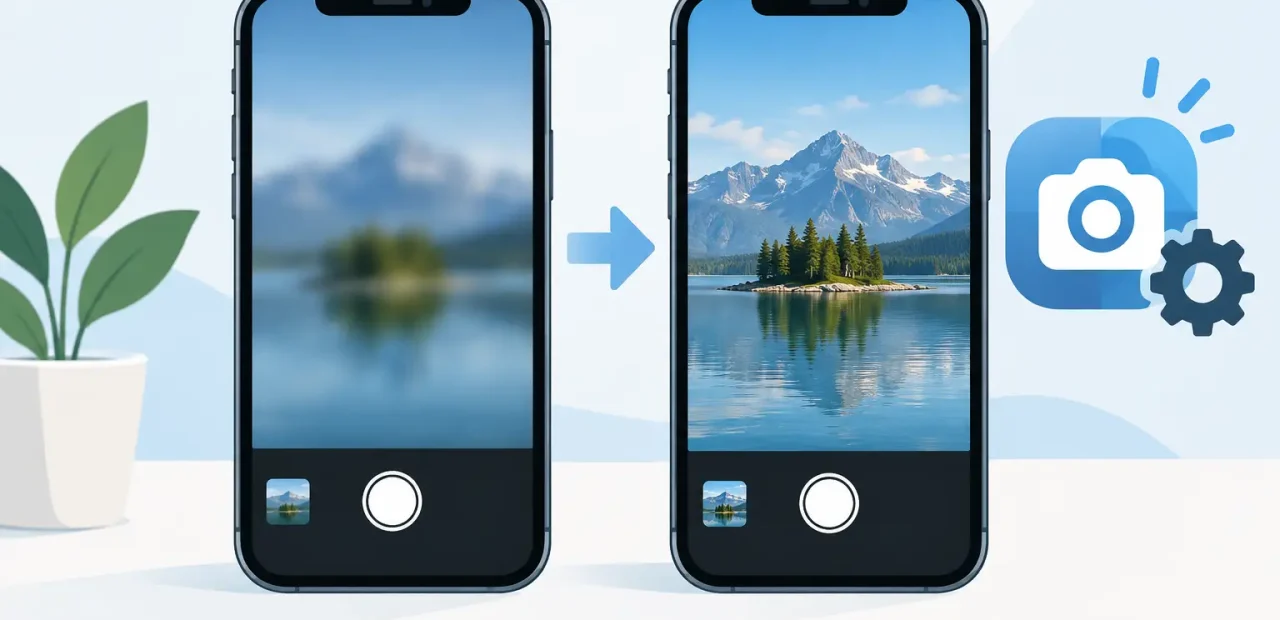
A blurry iPhone camera can ruin a class note, a listing photo, a family moment, or the one picture you needed for work. Before you assume the camera is done for, try these practical steps for how to fix iPhone camera blur. Many blur problems come from a dirty lens, an accessory blocking the camera, or a setting that takes seconds to correct. Others point to a camera part that needs professional attention.
Start With the Simple Checks
Clean the camera lens carefully
Pocket lint, fingerprints, makeup, and smudges can make every photo look hazy. Look closely at the rear lens and the front-facing camera area. Wipe the glass gently with a clean microfiber cloth. Avoid paper towels, rough fabric, or harsh cleaners that can leave scratches or residue behind.
If the lens still looks cloudy after cleaning, inspect it under bright light. A crack, deep scratch, or damage to the glass covering the camera can scatter light and create a permanent blurry spot in photos.
Remove your case and camera accessory
A case that sits too close to the lens, a cracked lens protector, or a magnetic accessory can interfere with your camera. Take the case off and test the camera again. This is especially useful if the blur started right after adding a new case or lens cover.
Lens protectors are not always the answer. Low-quality protectors can reduce sharpness, create glare, or make flash photos look washed out. If your photos improve with the protector removed, leave it off or replace it with a better-fitting option.
Check whether the blur is actually intentional
Portrait mode is designed to blur the background. That is useful when it works correctly, but it can make edges around hair, glasses, pets, or objects look soft. Switch to regular Photo mode and take the same picture. If it looks sharp there, your camera hardware is probably fine.
Also check the focus point before taking the picture. Tap the person or object you want to photograph on the screen. Your iPhone should refocus on that area. If you are taking a close-up, move back slightly and let the camera find focus before moving in again. Every iPhone camera has a minimum focus distance, and getting too close can make an otherwise healthy camera look blurry.
How to Fix iPhone Camera Blur in Settings
If cleaning the lens does not solve it, test the camera under different conditions. Open the built-in Camera app, switch between the front and rear cameras, and try Photo mode rather than Portrait, Cinematic, or a third-party app.
Give the camera a steady shot
Blur is often motion blur, especially indoors or at night. In low light, the camera may keep the shutter open longer to capture enough detail. Even a small hand movement can make text, faces, and moving subjects look soft.
Hold the phone with both hands, brace your elbows against your body, and wait a moment after tapping the shutter. If the subject is moving, add more light when possible or take several shots. Night mode can produce great photos, but it needs a steadier hand than a bright outdoor picture.
Restart the iPhone and close camera apps
A frozen focus system or temporary app glitch can affect photo quality. Close the Camera app completely, then reopen it. If the image remains blurry, restart your iPhone and test again.
Try the camera in the built-in app first. If it takes sharp photos there but looks blurry in Instagram, Snapchat, or another app, the issue may be with that app’s permissions, settings, or current version. Update the app and test again before assuming you need a camera repair.
Update iOS if an update is available
Software updates can correct camera bugs, improve compatibility, and address issues that affect focus or image processing. Go to Settings, then General, then Software Update. Install an available update when you have time to let the phone complete the process.
Do not expect a software update to repair a cracked lens or a physically damaged camera. Updates help when the cause is software, not when a camera component cannot focus correctly.
Find Out Which Camera Is Blurry
Your iPhone may have more than one rear camera, plus a front-facing camera. Testing each one helps narrow down the issue quickly.
Open the Camera app and take a photo with the front camera. Then switch to the rear camera and test standard, wide, and zoom views if your model includes them. If only one view is blurry while the others are clear, that is a strong sign that one camera module has a problem rather than a general software issue.
Pay attention to what the camera does when you tap to focus. A healthy camera should sharpen within a moment. If the image hunts back and forth, stays soft no matter where you tap, or makes a repeated clicking or buzzing sound, the focusing mechanism may not be working properly.
A blurry selfie camera can also be caused by damage or buildup around the front camera area. If Face ID has stopped working along with the blurry front camera, do not keep experimenting with parts or tools. That area contains sensitive components and is best handled by an experienced iPhone technician.
Signs Your iPhone Camera Needs Repair
Some camera problems are not fixable through settings. A professional diagnosis makes sense when you see a cracked lens cover, dark spots that never move, a camera that will not focus, constant shaking in the preview, or a black screen in the Camera app.
The same applies if the blur began right after the phone was dropped or if the camera image is sharp only at one zoom level. The camera housing, lens cover, or internal focus system can be affected by impact. Continuing to tap, shake, or press around the camera will not correct the cause and can make the damage worse.
You should also consider repair when the lens looks clear but every photo remains foggy or soft. That can mean the issue is inside the camera assembly, where cleaning the outside glass cannot reach it.
What a Camera Repair Can Fix
The right repair depends on the source of the blur. If the exterior camera glass is scratched or cracked, replacing that glass may restore a clear image without replacing the entire camera. If the camera cannot focus, shakes in the viewfinder, or fails at a specific zoom level, the camera module itself may need replacement.
A good repair shop should inspect the phone, explain what is causing the issue, and tell you whether a lens-glass repair or camera replacement is the better value. You should not have to guess or pay for a larger repair than the problem requires.
For people near TCU and across Fort Worth, Fort Worth iPhone Repairs offers walk-in iPhone camera diagnosis and fast repair options for common camera problems. Many repairs can be handled the same day, and the technician can show you what is wrong before work begins.
Protect Your Camera After the Fix
Once your photos are sharp again, a few habits can help keep them that way. Use a case with a raised edge around the camera area, keep the lenses clean with microfiber, and avoid stacking hard objects against the back of the phone in a pocket or bag. Skip cheap lens protectors that reduce image quality or fit poorly.
Most importantly, test your camera as soon as you notice a problem. A quick lens cleaning or case change may solve it in minutes. If it does not, getting a clear diagnosis early can save you from missing the photos and videos that matter while you wait for the issue to get worse.